
GrapheneOS: Take Back Control of Your Android
A flagship, hands-on guide to a more private, security-focused Android experience — from choosing the right Pixel to building your own app ecosystem, tightening permissions and deciding exactly how much Google you want in your digital life.
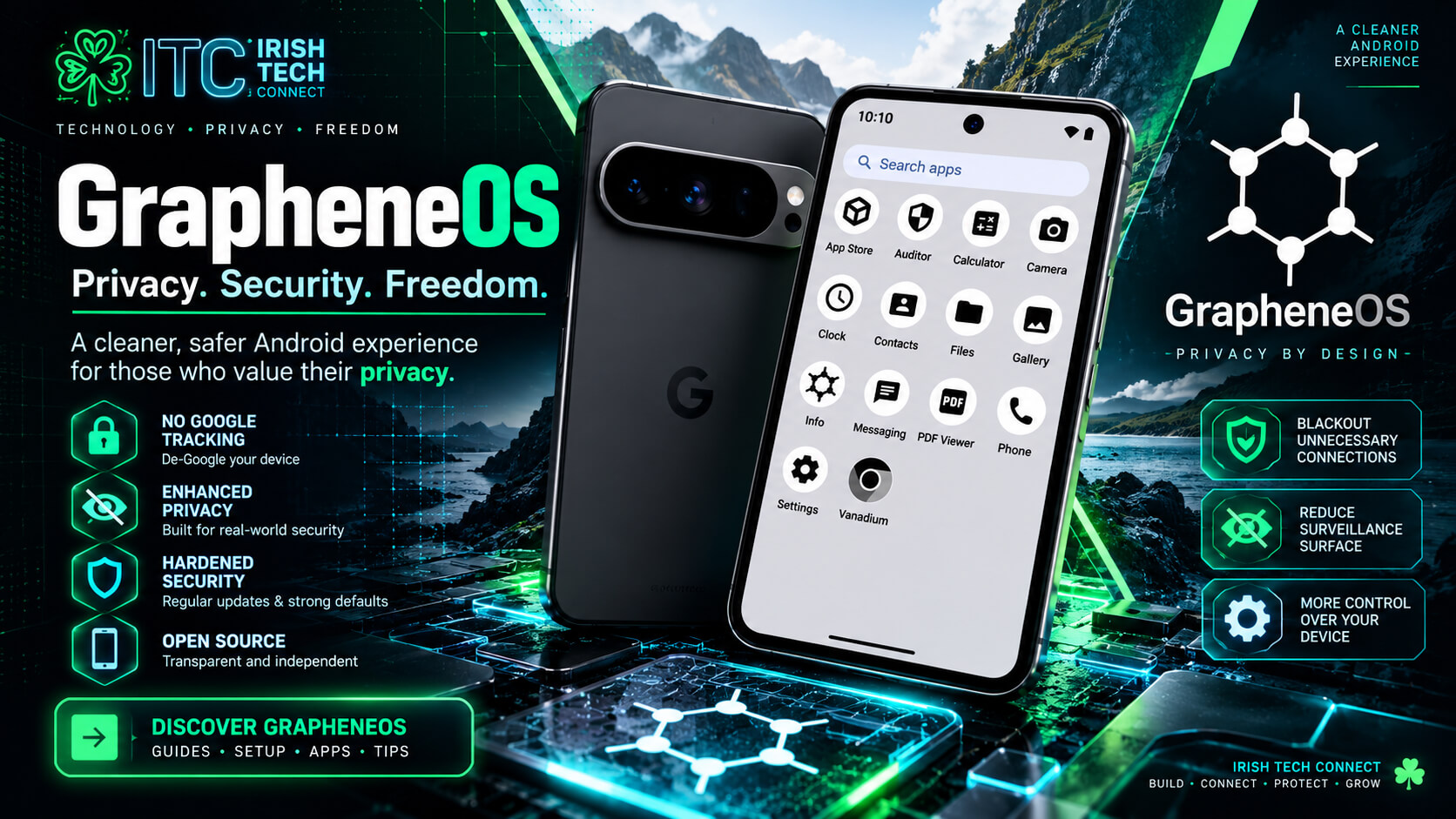 ☘️ ITC
There is a difference between owning a smartphone and having meaningful control over how it behaves. GrapheneOS is an open-source mobile operating system built on the Android Open Source Project (AOSP), with substantial security and privacy enhancements designed for supported Google Pixel hardware.
This guide brings together official GrapheneOS documentation and the Irish Tech Connect de-Googling research into one practical roadmap. It is designed for everyday users, privacy enthusiasts, technical learners and anyone who wants to understand their phone rather than simply accept its defaults.
What is GrapheneOS?
GrapheneOS is a privacy and security-focused operating system based on AOSP. The project concentrates on making the supported device platform more resistant to exploitation, improving privacy defaults and giving users more control over app access.
Security-first engineering
Systematic hardening, memory-safety protections and hardware-backed security features help raise the bar against exploitation.
Permission control
Additional controls such as Network and Sensors permissions let you make access decisions app by app.
Android app ecosystem
Install compatible Android apps from trusted sources. Add sandboxed Google Play only if your chosen apps need it.
GrapheneOS is not a cosmetic launcher or a set of privacy-themed settings. It is a complete operating system with its own release process, security work and device requirements.
Security and privacy: the features that matter
Verified boot
Supported Pixels use hardware-backed verified boot. Once installation is complete and the bootloader is relocked, the device can verify that the operating system and firmware match trusted images during startup.
App sandboxing
Android apps run in individual sandboxes. GrapheneOS builds on that model and makes Google Play, if installed, operate as ordinary sandboxed apps rather than granting it the privileged system integration found on stock Android.
Network permission
For apps that do not need online access, the OS-level Network permission can prevent them from using the network. It is a useful control for offline tools and utilities.
Sensor permission
Sensor access can be managed as a permission, giving you another way to tune what installed apps can observe.
Storage Scopes
Where compatible, Storage Scopes can let an app work without giving it broad visibility into files created by other apps.
Contact Scopes
Contact Scopes can provide a more selective alternative to handing an app your entire address book.
USB-C controls
Additional controls can restrict data access through the USB-C port while the device is locked.
Hardware memory tagging
On supported newer Pixels, GrapheneOS uses Memory Tagging Extension (MTE) for compatible code to help detect classes of memory-safety errors.
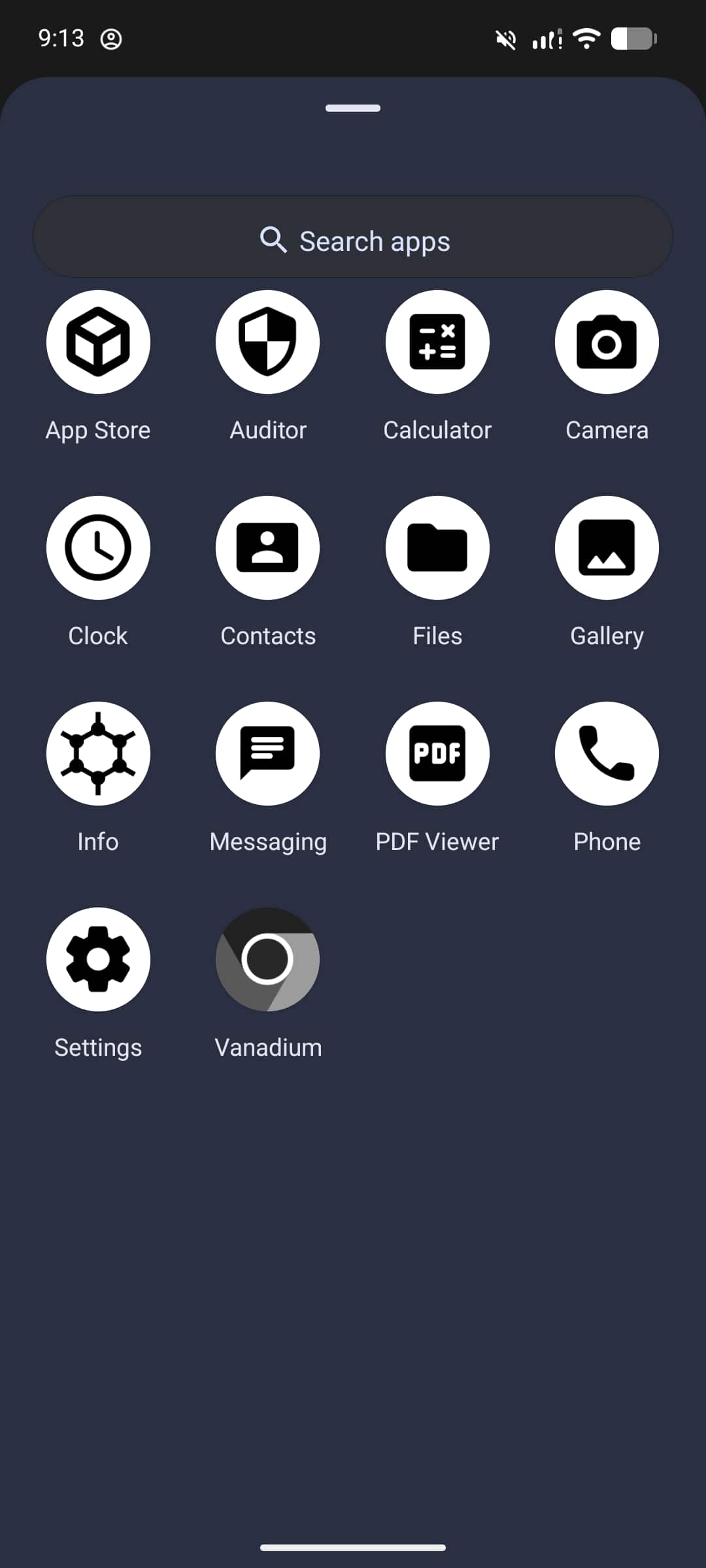
Security is strongest as a system: supported hardware, up-to-date firmware, the current OS release, a locked bootloader after installation, a strong screen lock and thoughtful app permissions all contribute.
Which phone should you buy for GrapheneOS?
GrapheneOS officially supports selected Google Pixel phones and the Pixel Tablet. For a new purchase, the project recommends Pixel 8-generation devices and newer, with the Pixel 9 and Pixel 10 families offering particularly long remaining support horizons. Check the official list before buying because support status and update timelines change.
Interactive device finder
Choose your priority to get an ITC starting recommendation. This is a buying guide, not a live stock checker; compare local Irish prices, storage options and condition before purchasing.
Starting point: Pixel 8a
A sensible balance of newer-generation security features and a lower-cost entry point. It has a seven-year minimum support guarantee from launch; confirm the device is carrier-unlocked and the exact support status before purchase.
MTE generationSupport through May 2031 minimum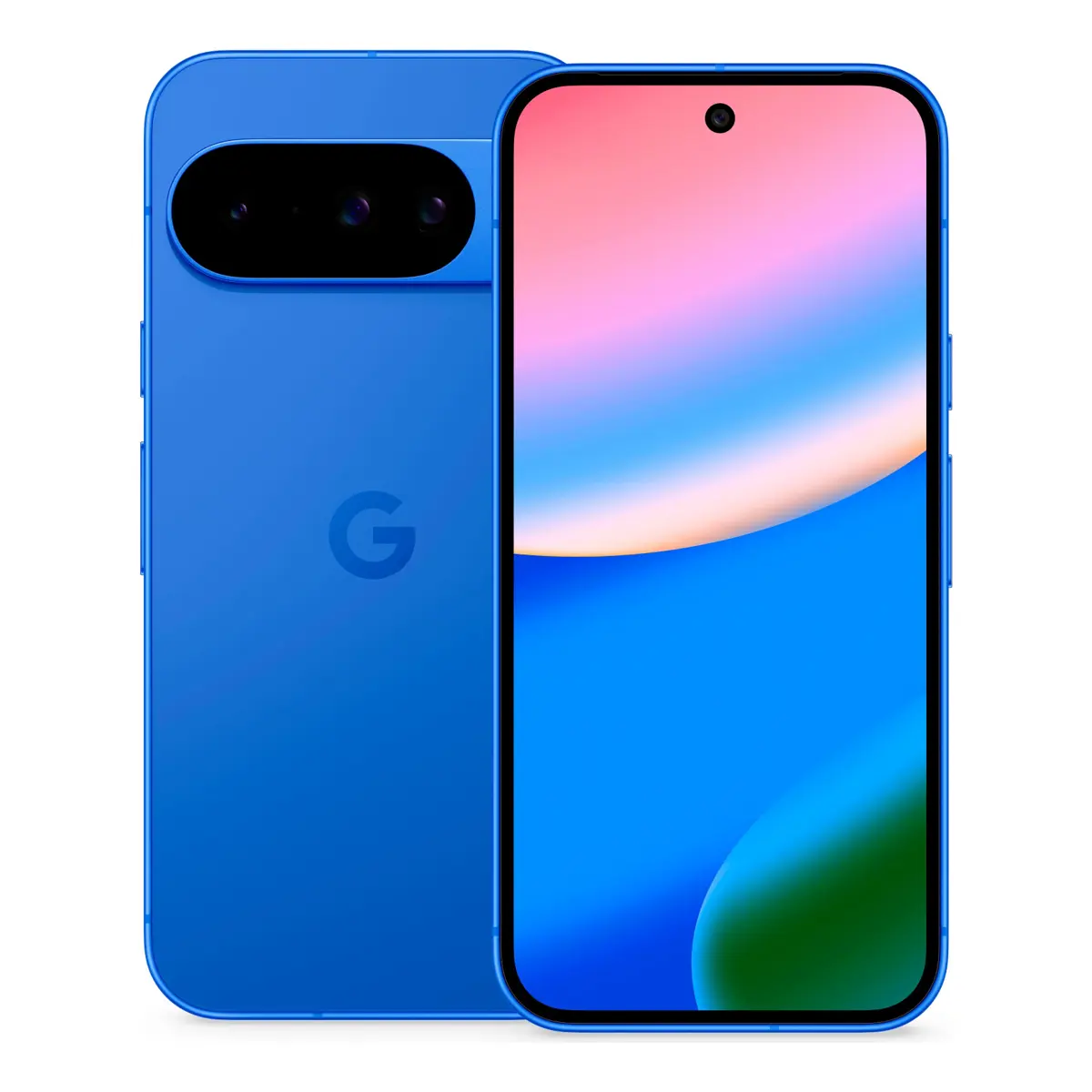

| Device family | ITC buying angle | Official minimum support end* | Recommendation |
|---|---|---|---|
| Pixel 10 / 10 Pro / 10a | Newest generation and long runway | 2032–2033 depending on model | Top longevity |
| Pixel 9 / 9 Pro / 9a | Modern hardware with strong remaining support | 2031–2032 depending on model | Best all-round |
| Pixel 8 / 8 Pro / 8a | Strong security feature set with 7-year minimum support | 2030–2031 depending on model | Value sweet spot |
| Pixel 7a / 7 / 7 Pro | Potential lower-cost route if already owned or attractively priced | 2027–2028 depending on model | Check remaining runway |
| Pixel Tablet / Pixel Fold | Large-screen or foldable experience | June 2028 minimum | Specialist choice |
*Support end dates are the device maker’s minimum guarantee listed by GrapheneOS, not a promise of additional updates beyond that date. Check the live official device list before making a purchase.
Official reference: GrapheneOS — recommended devices and support dates ↗.
The official installation roadmap
The recommended installation route for most people is GrapheneOS’s browser-based WebUSB installer. It guides you through the installation without requiring a separate flashing application. Follow the live official instructions for your exact device and browser.
Choose a supported Pixel
Check the exact model against the official supported-device list. Prefer a carrier-unlocked device and make sure OEM unlocking can be enabled.
Prepare and back up
Copy photos, messages, authenticator recovery information and important files somewhere safe. Installation wipes the phone, so verify your backup before proceeding.
Use the official Web installer
Open grapheneos.org/install/web in a supported browser. Use a reliable USB data cable connected directly to the computer and keep the device charged.
Follow each on-screen stage
The process includes unlocking the bootloader, downloading the factory image, flashing the OS and completing the required bootloader-locking stage. Read each confirmation on both screens.
Complete first boot and verify
Finish setup, confirm the bootloader is locked and keep the system updated. GrapheneOS provides verified boot and Auditor-related tools to help verify device integrity.
Watch the GrapheneOS walkthrough
Prefer seeing it in action? Watch the full walkthrough right here on Irish Tech Connect — the install flow, the first-boot setup and the settings that matter most. The video sits inside the article, so you can follow along without leaving the page.
Watch, learn, install.
See the GrapheneOS experience end to end — from the official installer to the post-install checklist that turns a fresh Pixel into your own sovereign device.
Playback is requested at 1.5× where the YouTube player supports it. If your browser or the video does not retain the speed setting, choose Settings ⚙ → Playback speed → 1.5× in the player.
Apps, app stores and a practical privacy stack
App choice is personal. The strongest starting point is to choose trustworthy sources, install only what you use, review permissions and keep apps updated. GrapheneOS includes its own App Store for GrapheneOS components and supported app delivery, including the sandboxed Google Play components.
GrapheneOS App Store
Start here for GrapheneOS system apps and its supported distribution of components. It is the recommended path for installing sandboxed Google Play.
Official app guidance ↗F-Droid
A catalogue and distribution platform focused on free and open-source Android apps. Choose repositories deliberately and review each app’s maintainer and update history.
F-Droid ↗Obtainium
Can help follow releases directly from developer sources such as project release pages. It suits people comfortable checking the source and signing/update model for each app.
Project page ↗Explore the ITC starter app stack
Search by category or app name. The entries below are starting points for research; always review current publisher details, permissions, maintenance and the features you personally need.
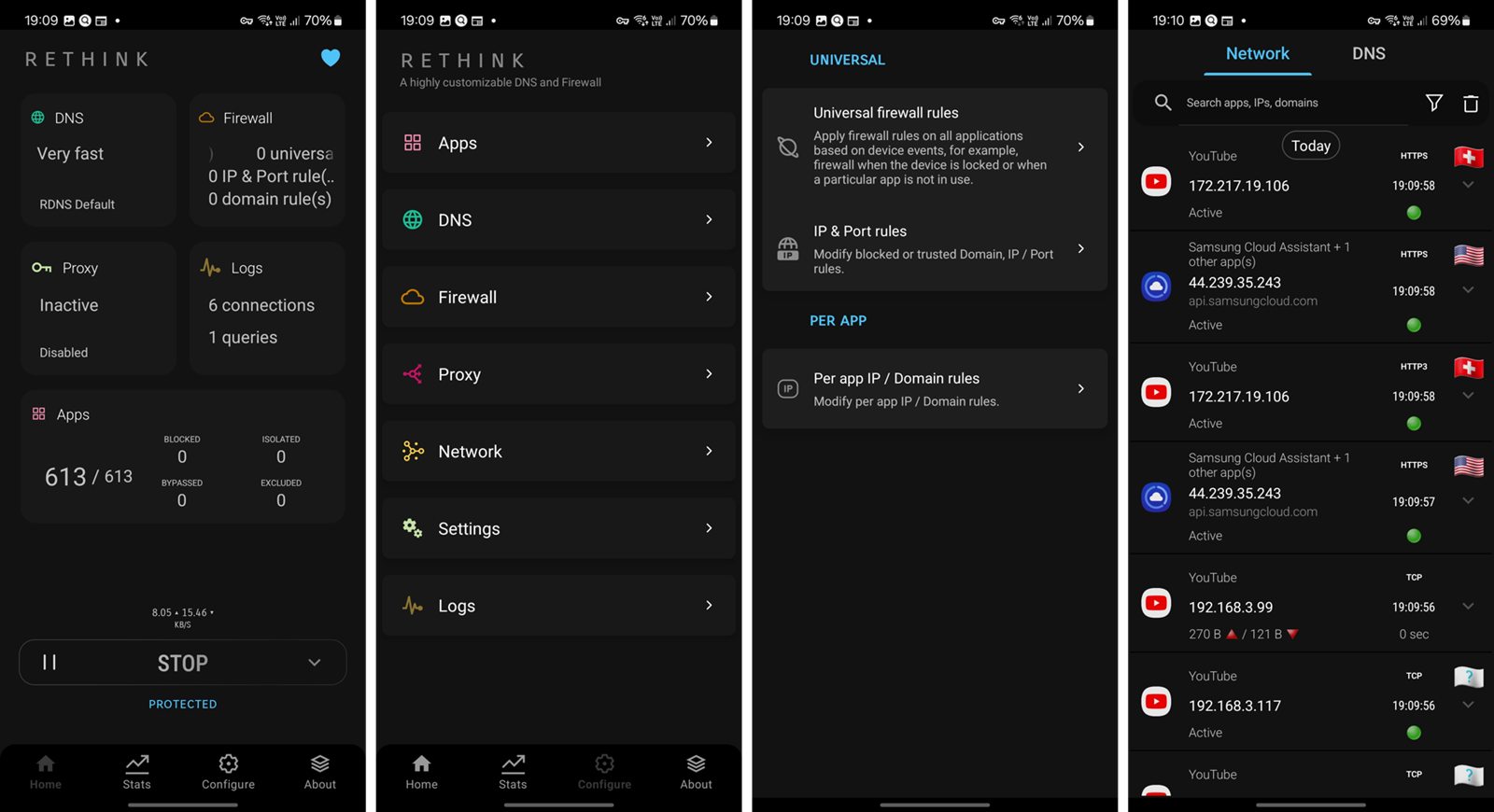
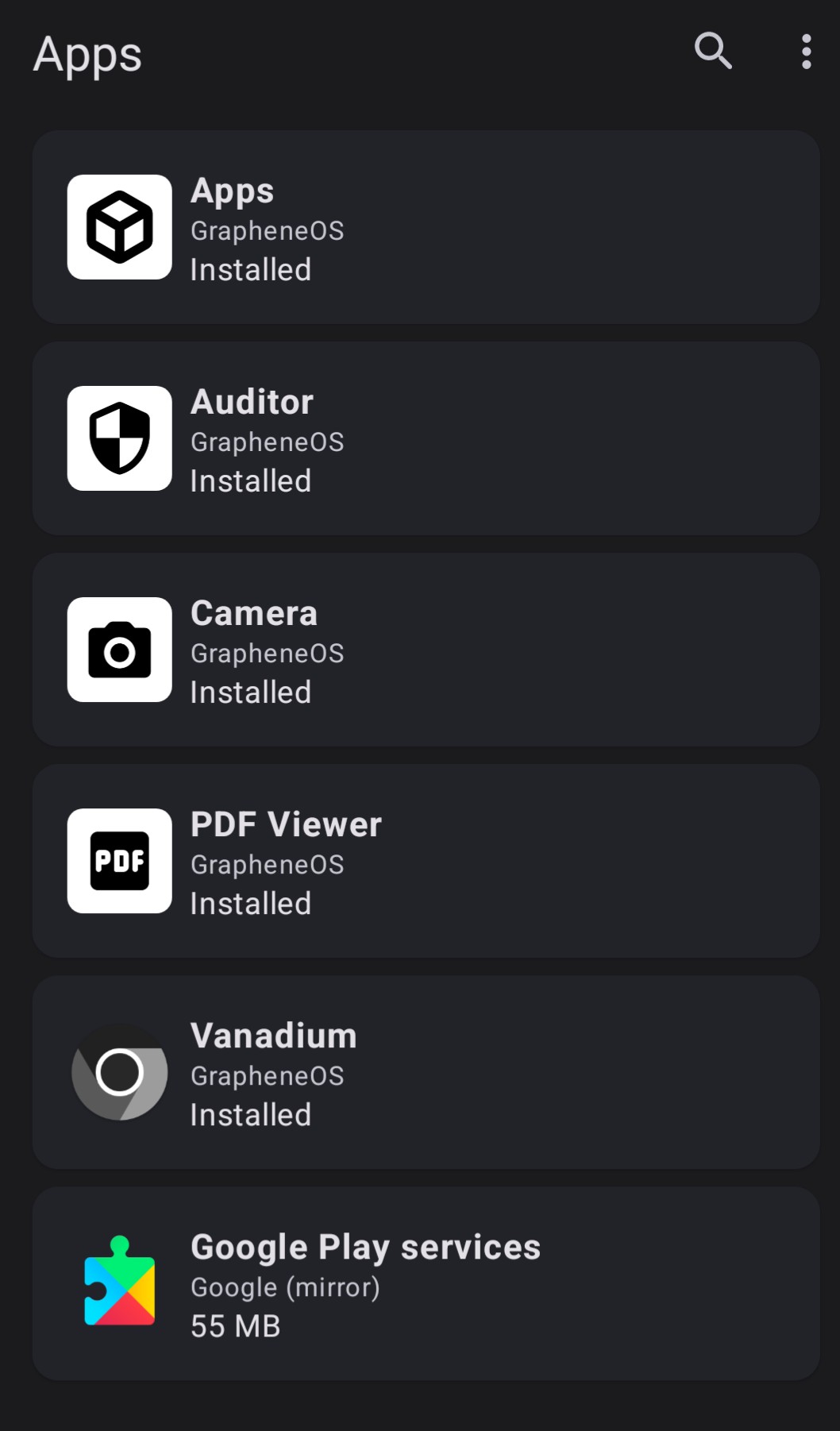
The app list is deliberately searchable and designed to be extended as ITC validates app versions and installation sources. No app is universally “best” for every threat model.
Will your everyday apps work?
Many Android apps work normally. Some apps rely on Google Play services for notifications, maps, authentication, in-app purchases or licensing. For these, installing sandboxed Google Play in the same user profile can provide broad compatibility while keeping it within the standard app sandbox.
Banking and payments
Compatibility varies by bank and app version. Before migrating your primary phone, check your bank’s current app behaviour on GrapheneOS, confirm web-banking access and retain the bank’s approved recovery route.
Notifications
Apps using Firebase Cloud Messaging generally need Google Play services for push delivery. Where needed, install the sandboxed components in the profile that contains those apps and configure battery settings as documented.
Maps and location
GrapheneOS provides its own network location option. Apps may also use satellite GNSS directly; exact behaviour depends on the app and chosen location provider.
Android Auto and wearables
Check the current official GrapheneOS guidance for your exact feature. Some integrations require additional configuration through the GrapheneOS compatibility layer.
Interactive compatibility planner
Pick the type of app you rely on to get a sensible first test plan.
Test your banking app before switching
Check the bank’s own support information, install the app from a trusted source, test sign-in and approval flows, and keep a supported backup access route available during migration.
The ITC post-install checklist
Start with a clean baseline, then tune settings around your actual use. The goal is a phone that is both well protected and enjoyable to use.
Security foundation
- Install current GrapheneOS updates.
- Use a strong PIN or passphrase suited to your routine.
- Confirm the bootloader is locked after installation.
- Review Auto Reboot and USB-C while-locked settings.
- Keep recovery codes and backups in a separate safe place.
App permissions
- Review Location, Camera, Microphone and Contacts access.
- Use Network permission for tools that work offline.
- Use Sensors permission where it fits the app.
- Consider Storage Scopes and Contact Scopes for compatible apps.
- Remove apps you no longer use and keep the rest updated.
Network choices
- Choose a DNS resolver aligned with your priorities.
- Use a reputable VPN when its threat model fits.
- Review per-app network activity with a tool such as Rethink.
- Remember that DNS filtering and a VPN solve different problems.
Daily usability
- Set up messaging, maps and your preferred keyboard.
- Test banking and work apps before relying on them.
- Confirm photos, contacts and files are backed up.
- Set a repeatable update and backup routine.
Profiles: give different parts of your digital life their own space
Android user profiles let you separate apps and data into different environments. On GrapheneOS, profiles can also help you decide where sandboxed Google Play is available. Think of profiles as separate workspaces on one device.
This is an example architecture, not a mandatory setup. Some people prefer one profile for simplicity; others benefit from separation. Choose the smallest structure that meaningfully supports your routine, and remember that profiles still share the same physical device and its overall security state.
The ITC De-Googled Android Sovereign Stack
Your existing research has a clear guiding idea: functional sovereignty — an Android setup that stays useful while giving you more say over data, permissions, software sources and connectivity.
Foundation: supported hardware + GrapheneOS
Start with an officially supported Pixel, current firmware and a correctly completed installation.
Trusted software sources
Use the GrapheneOS App Store for its components, official developer sources where appropriate, and carefully selected repositories for open-source apps.
Everyday replacements
Choose your browser, maps, gallery, keyboard, password manager, authenticator, email and messaging tools based on function and maintenance.
Network visibility
Use a DNS/firewall tool if you want per-app network controls. Keep in mind that Android’s VPN slot is normally shared by VPN-based firewall and VPN apps.
Local ownership and recovery
Maintain encrypted backups, export important recovery codes, and know how to restore your files before you need to.
Review and refine
Revisit app permissions and profiles periodically. Change one layer at a time so you can see what improves your daily setup.
Functional sovereignty: the principle behind the whole build
Your original ITC Sovereign Stack Blueprint puts the mission clearly: a clean, fast, low-noise Android ecosystem with minimal telemetry, reduced dependency on Google services, open-source alternatives where practical, offline-first capability, local ownership of files, reduced background network activity and long-term maintainability.
This is not about turning Android into an unusable bunker-phone. It is about constructing an ecosystem where the device serves its operator. Privacy should support your day-to-day life: messages still arrive, maps still guide you, passwords remain recoverable, photos are backed up, and the phone stays maintainable over time.
Intentional infrastructure
Every service has a job. Keep what helps, remove what adds no value, and make each app’s permissions fit its function.
Local ownership
Maintain copies of important files, credentials and recovery codes under your control. Cloud services can be useful, but they should not be the only copy of your digital life.
Maintainable routines
A small stack you understand and update consistently is more useful than a complicated collection of tools that nobody has time to maintain.
The stack has layers
GrapheneOS is the hardened foundation. The apps, profiles, DNS choices, backup routines and everyday habits above it determine how well the overall system matches your own priorities.
Ghost-Build candidates: four routes to a more independent phone
Your original research included a broader device comparison than a GrapheneOS-only buying list. We are preserving that distinction. These are four different paths, each with its own balance of security, repairability, ROM choice, cost and hands-on involvement.

🥇 Google Pixel 6a / 7a — legacy value candidates
Your notes singled out the Pixel 6a and Pixel 7a as lower-cost Ghost-Build candidates. Both appear in the official GrapheneOS supported-device list, but they do not have the same remaining support runway as newer recommended models.
- Pixel 7a minimum support end: May 2028.
- Pixel 6a minimum support end: July 2027.
- Pixel 8-generation and newer devices are the current recommended purchase class.
- Best use: an already-owned device or a low-cost learning/deployment device, with its support date factored into the decision.
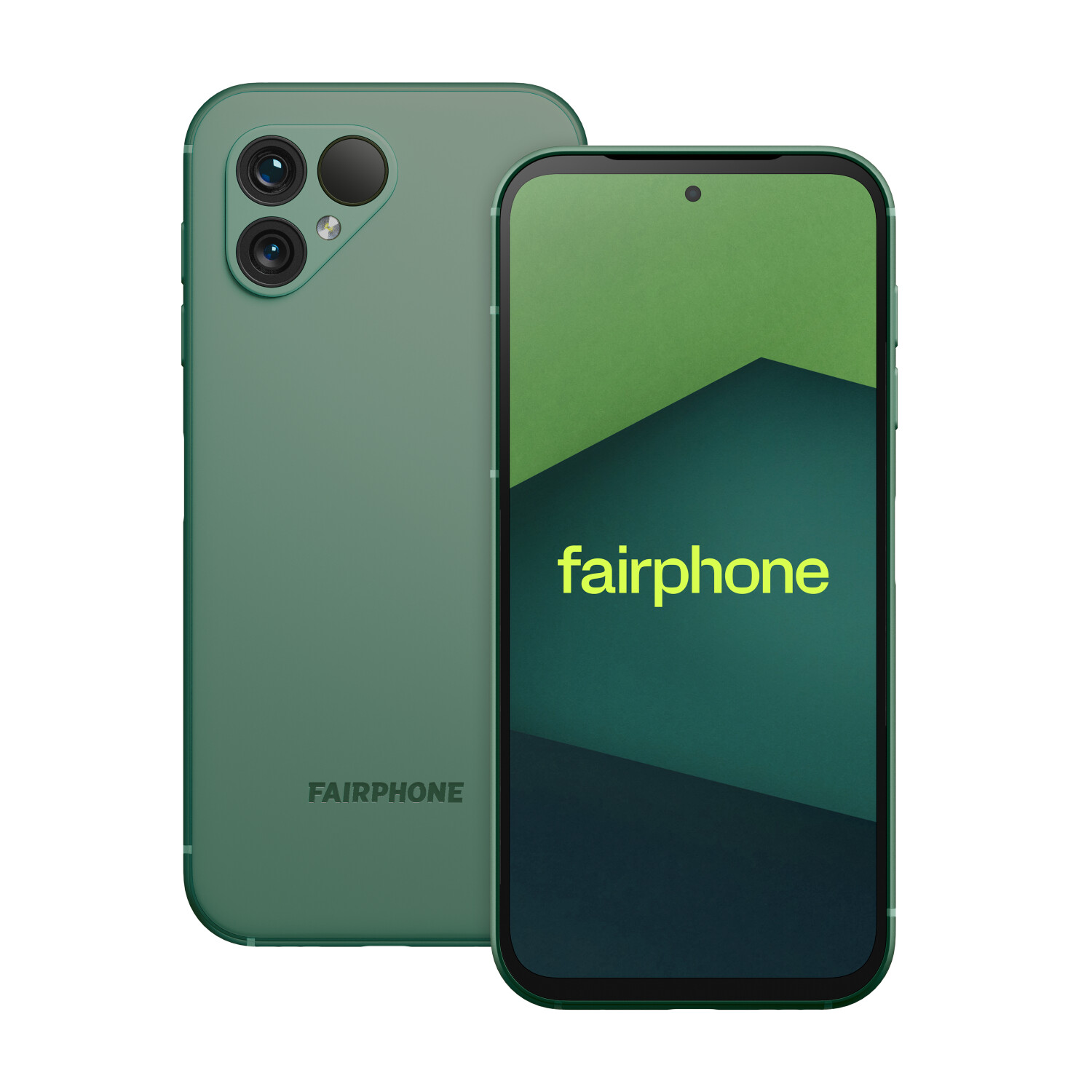
🥈 Fairphone 4 / 5 — modularity and repairability
Fairphone is a separate route for people who value repairable hardware, parts availability and a device designed around longevity. Fairphone publishes bootloader-unlocking guidance, and LineageOS lists Fairphone 4 and Fairphone 5 device pages.
- Useful for repairability and hands-on ownership.
- Can be paired with supported alternative operating systems such as LineageOS.
- Not an official GrapheneOS target.
- Check the exact ROM’s current release, device support, update cadence and verified-boot model before choosing it.
Fairphone bootloader guidance ↗ · LineageOS Fairphone 5 page ↗
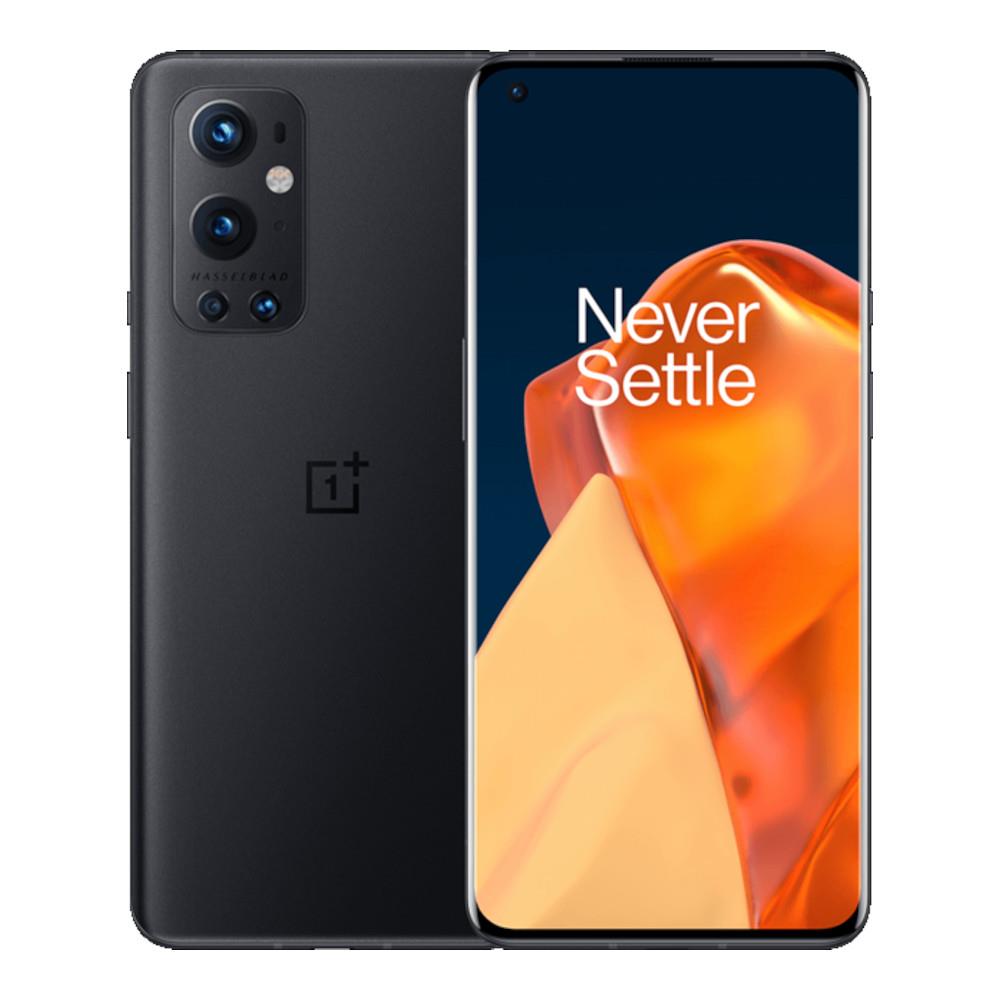
🥉 OnePlus 8T / 9 Pro — enthusiast experimentation
Your research identifies OnePlus devices as a power-user route. LineageOS has device pages for the OnePlus 8T and 9 Pro. The right choice depends on the exact variant, bootloader-unlock eligibility and the current ROM build.
- Useful for learning custom-ROM workflows and Android internals.
- Not official GrapheneOS devices.
- Verify model number and regional/carrier variant before purchase.
- Compare update cadence, hardware-backed security, integrity verification and app compatibility rather than assuming all ROMs offer the same security model.
LineageOS OnePlus 8T page ↗ · LineageOS OnePlus 9 Pro page ↗
⚙️ Moto G Power / Edge 2023 — research before purchase
The Motorola candidates from your notes belong in a model-specific custom-ROM investigation. Unlocking availability varies by exact model, region, carrier and Motorola’s eligibility process. LineageOS install instructions for some Motorola devices direct users to Motorola’s official unlock workflow, but that does not establish support for every Moto G Power or Edge 2023 variant.
- Confirm the exact model code, not just the marketing name.
- Check Motorola’s current bootloader eligibility page before purchasing.
- Check the official ROM device list for that exact model.
- Treat this as a learning or secondary-device candidate only after support is verified.
Compare the routes
| Route | Primary value | Best fit | Research checkpoint |
|---|---|---|---|
| Supported Pixel + GrapheneOS | Strong device-specific hardening and verified-boot model | Primary privacy/security phone | Official device list and support date |
| Fairphone + supported alternative OS | Repairability and longer hardware ownership | Modularity-minded owner | Exact ROM support and security/update model |
| OnePlus + supported custom ROM | Enthusiast control and ROM experimentation | Technical learner / secondary phone | Exact variant, bootloader and active ROM build |
| Motorola + model-specific ROM | Potential budget experiment | Secondary device after verification | Official unlock eligibility and exact device support |
App acquisition: the source is part of the security decision
Your deep-research report correctly treats app acquisition as its own security layer. A trustworthy operating system cannot tell you everything about the code you choose to install. The source, signing identity, update path, publisher and app’s permissions all matter.
GrapheneOS App Store
First choice for GrapheneOS components and the official sandboxed Google Play installation. It is integrated with the project’s own release and usage guidance.
Official guide ↗F-Droid
Useful for free/open-source software. Its security model uses signed repository metadata, app signing and published source/build information. Review each app and repository individually.
Security model ↗Google Play via sandbox
Best fit when an app needs Play services, Play licensing, in-app purchases or standard Play update flows. The OS lets you choose which profile uses it.
Compatibility details ↗Where Aurora Store fits
Your original notes list Aurora Store as an anonymous Play Store frontend and a bridge during transition. Preserve that as a documented option, but do not present “anonymous” as “invisible” or as the default safest acquisition method. Aurora is an unofficial client that communicates with Google Play infrastructure; the F-Droid listing itself notes that app lists and system details may be sent to Google Play servers. For apps that require Play, GrapheneOS documents sandboxed Google Play as the supported compatibility path.
Aurora Store listing and disclosures ↗
Direct APKs and Obtainium
Direct downloads can be useful when the developer publishes the app and its update information directly. Obtainium can follow releases from developer sources. This workflow is most appropriate when you can identify the genuine project, understand its signing/update path, and notice when a project changes release channels.
Repository selection checklist
- Identify the real developer and official project page.
- Check whether the app is actively maintained and how releases are announced.
- Prefer a consistent signing identity and a clear update mechanism.
- Review permissions against the features you actually use.
- Look for source availability, reproducible-build information and independent audits where relevant; these are useful evidence, not universal guarantees.
- Keep the source and update path consistent when possible. Avoid mixing sources casually for the same app.
The full ITC De-Googled Android stack
This expands the original Sovereign Stack Blueprint rather than replacing it with a generic list. The recommendations are role-based: choose one primary tool for each job, add a second only when it solves a real problem, and re-check current maintenance before installation.
| Layer | Primary candidates from ITC research | Practical role | Decision notes |
|---|---|---|---|
| Browser | Vanadium; evaluate current alternatives individually | Daily browsing and web rendering | Vanadium is purpose-built for GrapheneOS. Mull is archived; do not recommend it as a current maintained browser. |
| App source | GrapheneOS App Store; F-Droid; direct developer sources / Obtainium | Install and update apps | Use sandboxed Google Play when the app needs it. Aurora remains an optional third-party route with trade-offs. |
| Password vault | KeePassDX or Bitwarden | Credentials and secure notes | KeePassDX supports a local database workflow; Bitwarden suits people who value managed sync. |
| 2FA | Aegis | Time-based one-time passwords | Make encrypted exports and verify recovery before deleting the previous authenticator. |
| Hardware keys | FIDO2/WebAuthn security key from a reputable vendor | Phishing-resistant sign-in | Register a backup key and recovery method for critical accounts. |
| Gallery | Aves; Fossify Gallery | Browse local photos and metadata | Review file access and backup workflow. |
| Files | Fossify File Manager; Material Files | Local files and network shares | Material Files suits users who need network-share features. |
| Notes/calendar | Fossify Notes; Fossify Calendar | Local-first everyday organisation | Decide how you will sync and back up data before relying on it. |
| Maps | Organic Maps | Offline maps and navigation | Download the relevant regions before travelling and test route needs. |
| Sync | Syncthing | Phone ↔ desktop ↔ Linux ↔ NAS | Peer-to-peer sync is not itself a historical backup; protect against accidental deletions and ransomware by keeping versioned copies. |
| DNS | NextDNS | Resolver-level filtering and configurable logs | Choose a profile and logging retention deliberately. |
| Firewall | Rethink DNS + Firewall | Per-app network visibility and rules | Optional power-user layer; VPN-based tools commonly share Android’s VPN slot. |
| Messaging | Signal; Session | Everyday encrypted or pseudonymous communication | Choose based on who you need to reach and the identity model you need. |
| Media | VLC; Auxio | Local video/audio playback | Local libraries work well with an explicit backup/sync plan. |
| Keyboard | HeliBoard; FUTO Keyboard | Text input and offline typing preferences | Review network access and voice-input dependencies for your chosen configuration. |
| Launcher | Kvaesitso; Neo Launcher | Search-first or traditional home screen | Launcher choice changes workflow, not the underlying OS security model. |
Browser reality check
Your archive recommended Vanadium as the primary browser, Mull as a secondary browser and Cromite for compatibility. Keep Vanadium as the primary GrapheneOS-native choice. Because the old Mull project is archived, replace that recommendation with an actively maintained browser selected from current project status and your needs. Cromite should likewise be checked for current release cadence and official distribution before inclusion in a maintained app list.
Messaging choices
Signal is the practical mainstream choice when your contacts already use it and you need voice/video calling. Session belongs in the stack when pseudonymous communication without a phone-number-based identity is a priority. These serve different social and operational models; the app you can use consistently with your intended contacts is usually the practical starting point.
Media, files and local workflow
Aves gives a feature-rich local media library; Fossify Gallery offers a lighter alternative. Fossify File Manager suits straightforward local file work, while Material Files is worth evaluating for network shares. VLC handles a broad range of local audio/video formats, and Auxio is aimed at local music libraries. For video editing, the archive lists Fossify Video Editor and FFmpeg-based tools; verify active maintenance and app provenance before installing them.
Profiles, workspaces and the Ghost Phone architecture
Your GrapheneOS Bible uses a three-part structure: Owner, Daily Driver and Sandbox. The idea is to give different app groups different data and Google Play boundaries, while keeping the administrative profile quiet and predictable.
Owner profile
System administration, core settings, installation of profile-level infrastructure, password/authenticator management if this fits your threat model, and the small set of apps you deliberately want here.
Daily profile
Everyday browser, maps, media, messaging and the apps you use frequently. Keep it convenient and review permissions as you install tools.
Sandbox / test profile
Experimental apps, unfamiliar APKs or temporary services. Separate profiles can limit access to other profiles’ app data, but they do not make untrusted apps safe by themselves.
Optional: a Play-enabled profile
If a small set of apps needs Google Play, consider placing those apps and sandboxed Play components in a dedicated profile. This can keep Play-dependent workflows separate from the rest of your app environment. The trade-off is convenience: notifications, contacts, shared files and account switching may need extra setup between profiles.
Profile design rules
- Start with the fewest profiles that solve a clear separation goal.
- Remember that each profile has its own installed apps and app data; install and configure apps in the profile where they will be used.
- Choose how contacts, calendar entries, files and notifications should move between profiles before creating many boundaries.
- Keep account recovery, backups and critical communication available when a profile is not running.
- Revisit the structure after a week of real use; simplify anything that adds more friction than value.
NextDNS, RethinkDNS and the network layer
The ITC research includes two complementary network tools. NextDNS offers a configurable DNS filtering service. Rethink DNS + Firewall adds per-app network controls and traffic visibility through Android’s VPN interface. Neither should be treated as a magic privacy switch; they address different parts of the network path.
NextDNS: resolver-level policy
Choose a blocklist profile aligned with your needs, consider OISD and native tracking protection options from your notes, and decide whether query logs are useful. Set a retention level that matches your preferences and check how the profile is applied across Wi-Fi and mobile data.
RethinkDNS: per-app visibility
Useful for inspecting which apps connect, applying app-specific network rules and testing DNS filters. It is an optional power-user layer; start with a small ruleset and add exceptions only when a required app demonstrates a concrete need.
A practical network rollout
Start with GrapheneOS defaults
Install updates, review the built-in Network permission and test normal connectivity before adding a second layer.
Add one DNS policy
Configure NextDNS or another resolver you trust. Test browsing, banking, messaging, maps and work tools before expanding the rules.
Add Rethink only for a defined goal
For example, you may want to see per-app connections or block network access for selected apps. Avoid layering tools without knowing what each contributes.
Document exceptions
Keep a simple note of each allow rule, why it exists and which app feature it restores. Revisit exceptions after app updates.
Remember that a VPN-based firewall and a commercial VPN generally compete for Android’s single active VPN interface unless the app’s own design supports another arrangement. Check each tool’s current documentation before combining them.
Backups, authenticator migration and recovery planning
Your archive correctly treats recovery as infrastructure, not an afterthought. A privacy-focused phone is only practical when you can recover accounts and restore the files you care about.
Level 1: working copy
Keep active files on the phone or computer where you use them. Use a clear folder structure and know which app owns each important database.
Level 2: independent copy
Use Syncthing or another deliberate sync workflow to copy data to a second device or NAS. Test that the receiving device can open the files.
Level 3: recovery copy
Keep an encrypted, versioned backup on a separate medium or location. A sync mirror can propagate deletion, so it should not be the only recovery layer.
Account recovery kit
Store recovery codes and a documented restore path separately from the phone. For important accounts, consider a pair of FIDO2/WebAuthn security keys and register the backup key before you need it.
Aegis migration sequence
- Install Aegis from its trusted official source.
- Export the existing authenticator vault using the source app’s supported process.
- Import into Aegis and test several entries, including a critical account.
- Create an encrypted Aegis backup and store it in more than one appropriate place.
- Verify you can unlock and restore the backup before removing the old app or wiping the previous device.
- Update recovery codes and emergency access instructions where required.
KeePassDX and password database care
If you use KeePassDX, treat the database file and its key material as separate critical assets. Keep encrypted backups, test opening a copied database on another device, and make sure the recovery secret is available independently of the phone. A local vault gives you ownership, but that ownership comes with responsibility for backup and restoration.
Syncthing is synchronisation, not the whole backup plan
Use Syncthing for phone-to-desktop, phone-to-Linux and phone-to-NAS transfers of photos, documents, music and selected backup files. Consider file versioning or an additional offline copy so that an accidental deletion or unwanted change is not instantly mirrored everywhere.
Pixel 7a (Lynx): the ITC installation and offline-kit notes
Your archive contains a dedicated GrapheneOS Installation Bible for the Pixel 7a (codename lynx), including Windows and Linux device detection, Fastboot, the common “waiting for any device” problem, bootloader unlocking, Web installer flow, bootloader relocking, initial configuration and return-to-stock planning.
Pre-flight
- Confirm the handset is the exact supported model and can unlock its bootloader.
- Back up the phone because unlocking and flashing wipe user data.
- Use an updated supported browser and operating system.
- Use a reliable USB data cable connected directly to the computer rather than through a hub.
- Have sufficient free storage and battery power.
- Download only from the official GrapheneOS installation site.
Web installer route
- Prepare the phone and enter Fastboot mode according to the official instructions.
- Connect the phone and confirm that the browser detects the device.
- Unlock the bootloader only after confirming the backup.
- Download and flash the official factory release through the guided installer.
- Lock the bootloader when the installer directs you to do so.
- Complete first boot, verify the installation and apply updates.
Device-detection troubleshooting
- Fastboot not found on Linux: verify platform-tools installation and the command path.
- Waiting for any device: check cable data capability, direct USB port connection, Fastboot mode and browser permission.
- Windows driver: current Windows 10/11 includes a generic driver for recent Pixel devices; if detection fails, check Windows Update and Device Manager against the current installer guide.
- Browser/storage issue: use an officially supported browser and avoid private-browsing mode for the web installer, which can limit storage needed to unpack releases.
Offline installation archive: what it means
Your notes correctly distinguish an offline copy of installer assets from a fully manual Fastboot deployment. These are different workflows. For a manual install, the relevant package, factory images, platform-tools and verification information must match the exact device and release. Do not assume an “Install Zip” alone contains everything required for manual flashing. Build and test the archive from the official instructions for the specific release rather than reusing an old file bundle.
Three deployment profiles: practical, balanced and advanced
🟢 Profile A — Everyday privacy
Goal: privacy improvements with low maintenance.
- Supported Pixel + GrapheneOS
- Vanadium, password manager, Aegis
- Signal and Organic Maps where suitable
- Sandboxed Google Play only if required
- Simple backup and update routine
🔷 Profile B — Balanced sovereignty
Goal: lower dependency and better data ownership.
- Profile separation for app groups
- F-Droid and selected official developer sources
- NextDNS policy and Syncthing backup workflow
- Review permissions and app network access
- Encrypted recovery copies and backup testing
🟣 Profile C — Advanced / offline-focused
Goal: more control over network, software and recovery workflows.
- Dedicated test profile or secondary device
- RethinkDNS rules documented and reviewed
- Offline maps and local file workflows
- Versioned encrypted backups
- Verified installation material and tested recovery procedure
Choose the profile that matches your current needs. You can move from A to B or C in stages; there is no need to deploy every advanced component at once.
Threat models: build the right level of privacy for your life
A threat model is simply a practical description of what you want to protect, from whom or what, and what trade-offs you are willing to make. It prevents the stack from turning into a pile of tools chosen just because they sound technical.
Everyday privacy
Protect: personal data, app access and routine tracking.
Prioritise: supported device, updates, app permissions, trusted sources, password manager and backups.
Keep it simple: built-in GrapheneOS controls plus a small set of well-maintained apps.
High compartmentalisation
Protect: separation between identities, work, social apps and experimental tools.
Prioritise: distinct user profiles, minimal cross-profile sharing, careful account separation and documented recovery.
Trade-off: more profile boundaries require more planning for notifications and shared data.
Travel / sensitive work
Protect: selected data during travel or temporary work.
Prioritise: minimal installed data, offline copies of essential documents, secure account recovery and clear device-handling routines.
Extra layer: consider a dedicated secondary device if the workflow justifies it.
Use the tool that addresses the actual layer
| Concern | Primary layer | Examples |
|---|---|---|
| OS exploitation resistance | Hardware + operating system | Supported Pixel, GrapheneOS updates, verified boot |
| App access to device features | Permissions and scopes | Network, Sensors, Camera, Microphone, Location, Contact Scopes |
| App download integrity | Software provenance | Official source, signing identity, repository metadata, update path |
| DNS-level domain filtering | Resolver policy | NextDNS or another selected DNS provider |
| Per-app network inspection | Firewall/VPN layer | Rethink DNS + Firewall |
| Credential theft and account takeover | Authentication | Password manager, Aegis, FIDO2/WebAuthn key |
| Lost phone or accidental deletion | Recovery | Encrypted backups, Syncthing plus versioning, recovery codes |
DNS filtering cannot replace app permissions; a VPN cannot make an untrusted app trustworthy; a password manager cannot restore a lost vault without a backup; and profile separation is not a substitute for updates. The best stack combines layers that solve different problems.
App evaluation matrix: provenance, maintenance and privacy fit
The original deep-research report used columns for FOSS status, audit/provenance, telemetry, censorship resistance and a risk rating. That is a useful framework, but audit dates and project status must be current, and a blanket “low risk” label can hide important differences. Use the matrix below as a decision aid rather than a permanent security certification.
| App / layer | Open source / provenance | Data / service model | Best-fit role | ITC evaluation |
|---|---|---|---|---|
| Vanadium | GrapheneOS project, hardened Chromium | GrapheneOS-specific hardening and update flow | Primary browser on GrapheneOS | First choice; keep updated |
| GrapheneOS App Store | First-party project source | Distribution of GrapheneOS components and supported sandboxed Play | Core OS apps and Play compatibility | Start here for project components |
| F-Droid | Open repository with signed metadata and published build practices | Repository-based distribution; app-level behaviour varies | FOSS catalogue | Review app, repo and update status individually |
| Aurora Store | Open-source third-party Play frontend | Uses Google Play infrastructure; anonymous mode is not invisible | Optional transition / niche acquisition workflow | Do not present as default safest source |
| Obtainium | Open-source app updater for developer releases | Depends on the chosen release sources | Follow official project releases | Useful for technically confident users |
| KeePassDX | Open-source local database client | Vault is stored under the user’s chosen file workflow | Local credential vault | Back up database and key material |
| Bitwarden | Open-source client ecosystem with hosted service option | Sync and account recovery depend on service configuration | Convenient cross-device credentials | Strong practical option; protect account recovery |
| Aegis | Open-source authenticator | Local vault and export/backup workflow | TOTP second factors | Test encrypted backup restoration |
| Signal | Open-source clients and protocol, service-operated infrastructure | End-to-end encrypted messaging with account/service metadata | Everyday secure messaging | Choose for practical contact adoption |
| Session | Open-source project and decentralised design | Different identity and network model from phone-number messengers | Pseudonymous communication needs | Evaluate current network and recovery behaviour |
| Organic Maps | Open-source mapping app using OpenStreetMap data | Offline use for downloaded map regions | Navigation with offline capability | Download and test before travel |
| Syncthing | Open-source peer-to-peer sync | Device-to-device encrypted transfer | Local ownership and file synchronisation | Add versioning for true recovery |
| NextDNS | Hosted resolver service | Queries go to a selected external provider; logging is configurable | DNS filtering | Choose logging/retention consciously |
| Rethink DNS + Firewall | Open-source network tool | Local VPN-interface-based controls plus DNS configuration | Per-app visibility and rules | Optional advanced layer |
| Mull / DivestOS | Previously open-source project | Project archived; no further updates | Legacy research reference | Remove from current recommended stack |
How to interpret audit and provenance claims
“Open source” means code can be inspected under its licence; it does not automatically mean the installed binary was built from that code. “Audited” should be accompanied by the audit date, scope and auditor. “Reproducible builds” provide a way to compare builds, where the project supports it. “No telemetry” should only be used when the claim is grounded in current implementation and network behaviour. An app’s privacy profile can also change with updates, optional features and service configuration.
The archived deep-research report contains historic audit references, including older Cure53 assessments. We have not treated those as current audits without checking the original report, scope and date. This prevents old credentials from being mistaken for a current security endorsement.
What came from the ITC archive — and what was updated
| Archive material | Preserved in the flagship | Research treatment |
|---|---|---|
| De-Googled Android Sovereign Stack Blueprint | Functional sovereignty, app layers, local-first tools, maps, DNS, messaging, sync, launchers and media | Expanded into role-based app stack and maintenance guidance |
| Deep-research report | App-source workflows, audits/provenance, app categories and user profiles | Updated source guidance and current project status checked where available |
| GrapheneOS Bible Canvas | Pixel deployment, Fastboot, verification, troubleshooting, profile architecture, security keys, Aegis, Syncthing and future operations | Organised into installation, hardening, recovery and advanced-workflow sections |
| Pixel 7a installation Bible | Device codename Lynx, Windows/Linux detection, Web installer, relocking, offline kit and recovery-to-stock concepts | Official installer remains the live procedure of record |
| Post-installation Bible | Auto Reboot, USB controls, network policy, app stack, profile separation and RethinkDNS tiering | Recommendations framed as configurable choices rather than universal mandatory settings |
| Ghost-Build notes | Pixel, Fairphone, OnePlus and Motorola comparison | Separated official GrapheneOS support from alternative-OS and custom-ROM routes |
This flagship is designed as a living resource. Device support, security features, app maintenance and compatibility change. The most important operational habit is to revisit primary sources at the point of installation, purchase or major configuration change.
GrapheneOS FAQ
Is GrapheneOS completely Google-free?
It does not include Google apps or services by default. Users can optionally install official Google Play components as sandboxed apps. You choose whether to use them and which user profile contains them.
Can I install APK files?
Yes. GrapheneOS supports Android app installation through normal Android app-install flows. Use official developer sources or reputable repositories, verify authenticity when possible, and keep installed apps updated.
Does GrapheneOS work on Samsung, OnePlus or Xiaomi phones?
Official production support is focused on selected Google Pixel devices. Check the live official supported-device list rather than assuming a generic Android build is equivalent.
Do I need to root the phone?
No. The official GrapheneOS installation process does not require root access, and keeping the supported security model intact is central to the project.
Will my banking app work?
It depends on the specific bank and app version. Some work directly; others need sandboxed Google Play; a subset may use device-integrity requirements that affect compatibility. Test before making the phone your only banking device.
Can I use Google Maps or Google Photos?
Google apps can be installed as ordinary apps, with compatibility depending on the features you want. You can also choose alternatives for maps, galleries, backup and other functions.
Is GrapheneOS only for technical users?
The installation has a guided web installer and day-to-day use remains familiar Android. A little preparation makes the transition smoother, especially for app compatibility, backups and account recovery.
What is the best Pixel to buy?
For a new purchase, start with Pixel 8-generation devices and newer, then choose based on price, form factor, storage and remaining support. The Pixel 9 and Pixel 10 families offer longer minimum support horizons. Always check the official list before buying.
Official references and trusted starting points
This article combines ITC’s existing de-Googling and GrapheneOS notes with current official project documentation and selected app project pages. Official GrapheneOS documentation takes priority for device support, installation and OS behaviour.
- GrapheneOS — official project homepage
- GrapheneOS FAQ — supported and recommended devices, support dates
- GrapheneOS — features overview
- GrapheneOS — usage guide
- GrapheneOS — official installation hub
- GrapheneOS — WebUSB installer
- Rethink DNS + Firewall — official app page
- F-Droid — app repository
- Organic Maps — official project
- Signal — official messaging project
- Vanadium — GrapheneOS project repository
- GrapheneOS app drawer screenshot reference
- DivestOS project end-of-development notice
- Mull project archive status
- F-Droid security model
- Aurora Store package details and disclosures
- Fairphone official bootloader unlocking guidance
- LineageOS Fairphone 5 device page
- LineageOS OnePlus 8T device page
- LineageOS OnePlus 9 Pro device page
Editorial note: App features, support dates and compatibility change over time. This guide is intended to be maintained as a living ITC resource; revisit the linked official pages before publishing revisions or making device-purchase decisions.
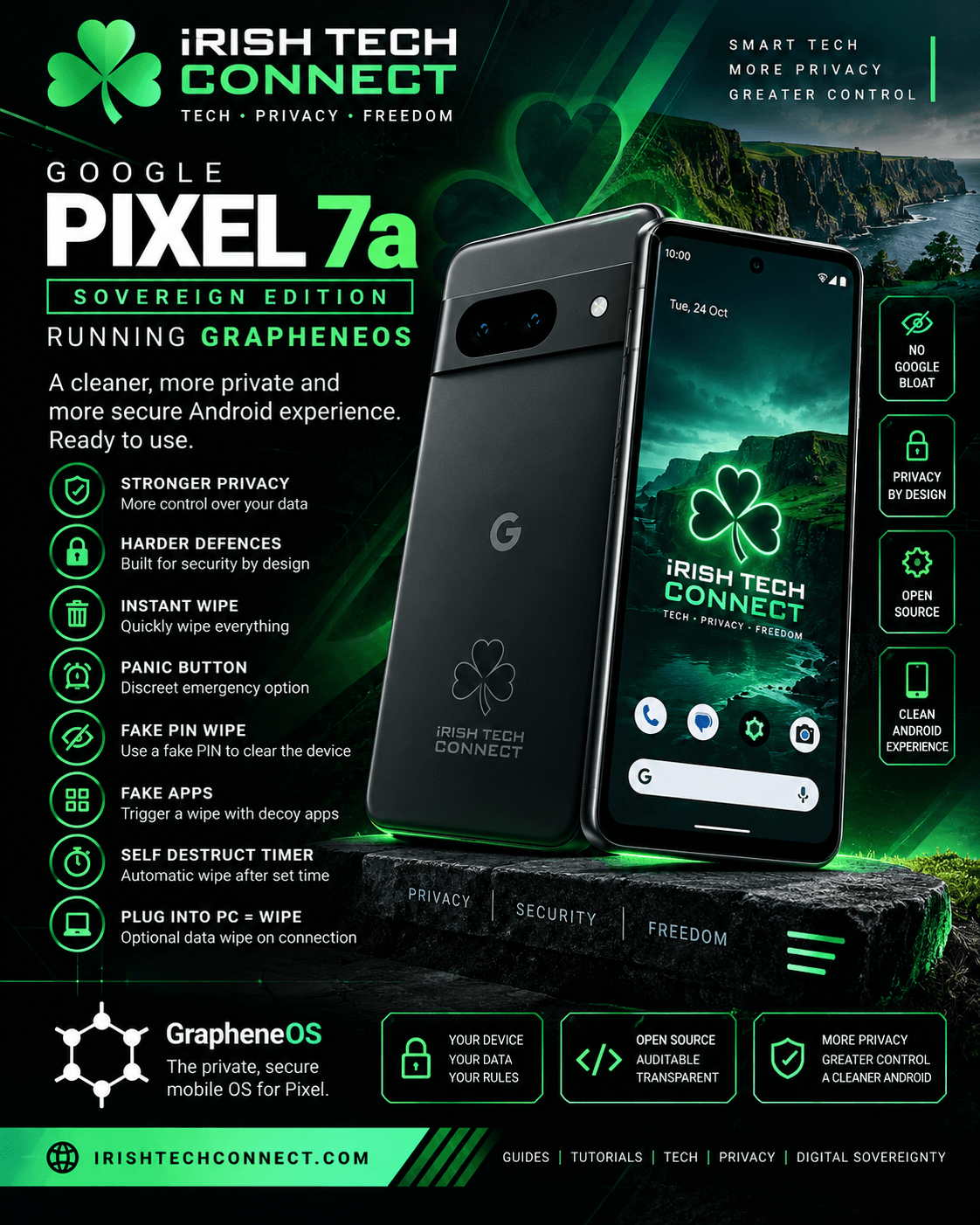
The Pixel 7a “Sovereign Edition” — live on DoneDeal
This is not a hypothetical build. The exact setup described in this guide — a real Pixel 7a, freshly rebuilt with GrapheneOS, fully updated and loaded with the ITC starter stack — is for sale right now on DoneDeal. One careful owner of the install. Ten minutes from unboxing to digital sovereignty.
Private sale by Irish Tech Connect. Condition, provenance and the full spec list are on the listing page.