
Your screen.
A smarter sunset.
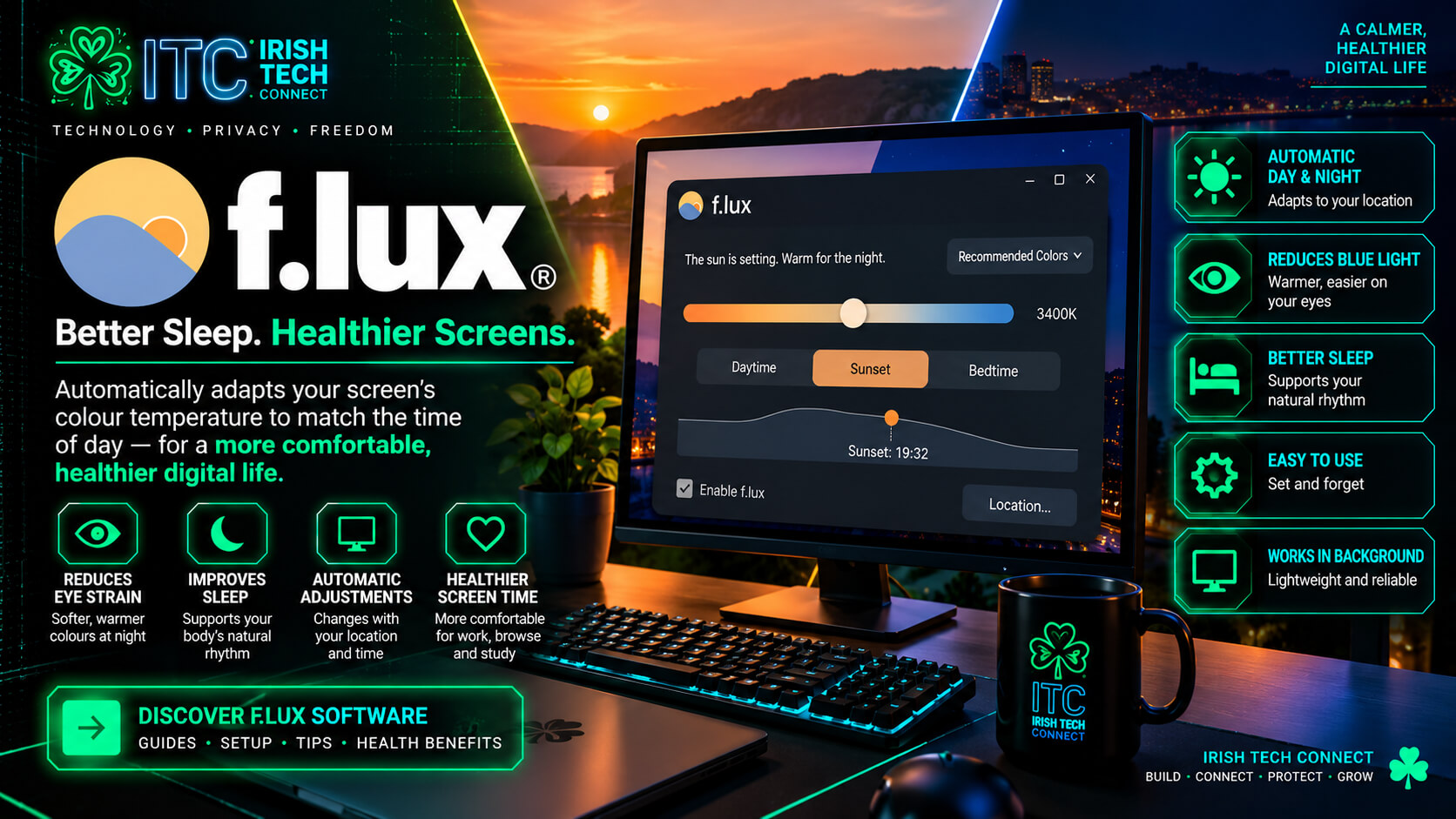
f.lux software is a clever desktop utility that automatically adjusts your screen’s colour temperature as the day moves into evening. Less harsh, more amber, and tailored to your schedule.
Free for personal use on supported platforms. Always download from the official f.lux website.
Feel the shift.
 ☘️ ITC
Why try f.lux software after dark?
Most displays use relatively cool, daylight-like colours by default. That can look great during the day — but late at night, a bright, cool screen can feel out of place in a dim room.
f.lux software changes the colour of your display over time. It can keep your screen closer to daylight during the day, then gradually shift towards warmer amber tones as evening arrives. Tell it where you are and when you normally wake up, then adjust the look to suit you.
Daytime clarity
Keep a more natural, cooler-looking display while daylight is around and you’re getting things done.
Evening transition
Let f.lux move towards warmer colours as the day winds down, rather than manually changing settings every night.
Your screen, your rules
Adjust the colour temperature and schedule. Temporarily disable it when accurate colours matter.
The ITC verdict
For people who spend long hours at a computer — especially in the evening — f.lux is a useful, easy-to-try personalisation tool. We like that it automates a small quality-of-life adjustment without asking you to remember it every day.
Play with the colour temperature
This mini demo is illustrative — it isn’t f.lux itself. Move the slider to see how a display can shift from a cooler daylight look to a warmer evening tone. Lower Kelvin values look warmer; higher values look cooler.
The screen-light simulator
INTERACTIVE DEMOTip: there is no single perfect setting. Try a warmer value in the evening and choose what feels comfortable to you.
Small utility. Big everyday convenience.
Here’s why f.lux software earns a place in the ITC digital toolkit — not because it promises miracles, but because it gives you a practical bit of control over your workspace.
A warmer evening setup
Make your screen’s colour feel less like bright daylight when the room around you is lit with warmer lamps.
Set it and forget it
Once configured, the schedule can adjust your display automatically throughout the day.
Made for computer people
Handy for students, developers, writers, gamers and anyone who regularly uses a computer after dark.
Control when it matters
Warm colour filters change how colours appear. Disable f.lux temporarily for photo editing, design, colour grading or other colour-critical work.
Fits your routine
Set your location and usual wake time so the schedule better matches your day and night.
Easy to try
The official site offers downloads for supported desktop platforms, with personal-use options available without a subscription fee.
Up and running in four steps
Keep it simple. Install it from the official source, then give yourself a few evenings to get used to the warmer look.
Download
Visit justgetflux.com and choose the download for your operating system.
Install
Run the installer or follow the platform-specific instructions supplied by f.lux.
Set your routine
Enter your location and usual wake time when prompted, then choose your preferred colours.
Fine-tune
Try the default recommendation first. Adjust gradually and disable it when precise colour accuracy is needed.
What f.lux can — and can’t — do
What it can do
Automatically warm screen colours at night, offer custom settings, and make the display better match the lighting in your room.
What it may help with
Some people prefer warmer evening screens and may find them more comfortable. Reducing bright light at night can also be part of a sensible sleep routine.
What it can’t promise
It is not a medical treatment, a guaranteed cure for eye strain or insomnia, or proof against eye damage. Evidence does not show that ordinary screen blue light damages human retinas.
Don’t forget the basics
Take regular screen breaks, blink, adjust brightness to your room, and give yourself time away from screens before bed where possible. If eye discomfort persists, seek advice from an eye-care professional. f.lux is one useful setting — not the whole solution.
Quick answers before you install
Is f.lux free?
f.lux is offered free for personal use on supported platforms. Business and corporate use may have different licensing options, so check the official site if you’re installing it for work.
Does f.lux work on Windows?
Yes. The official site provides a Windows download, as well as versions or installation guidance for macOS and Linux. Check the current official download page for compatibility details.
Will it make my screen orange?
It can look noticeably warmer, especially with stronger night settings. Start with the recommended settings and adjust the warmth to your preference; it may take a few days to get used to.
Can I turn it off for Photoshop, gaming or design work?
Yes. Colour filters alter how colours appear, so disable f.lux when you need accurate colour reproduction. The official help pages explain the available disable options and shortcuts for your platform.
Will it definitely improve my sleep or stop eye strain?
No software can guarantee that. Warmer screens may suit some people’s evening routines, but digital eye discomfort is often related to prolonged near work, reduced blinking, brightness and ergonomics. Treat f.lux as one optional tool, not a cure.
Where should I download it?
Use the official website: https://justgetflux.com/. Avoid unofficial download mirrors.
Give your evenings a little less glare and a little more glow.
Try f.lux, experiment with the settings, and see whether a warmer display suits your setup. A tiny change to your digital environment could become one of those useful tools you wonder how you lived without.
Visit the official f.lux websiteIrish Tech Connect · Practical tech. Smarter setups. Better digital habits. ☘️
More practical tech from Irish Tech Connect
f.lux is one small way to personalise your digital workspace. Explore more practical support from Irish Tech Connect, from looking after your website to keeping your technology working smoothly.
Website Maintenance & Care
Learn how regular updates, backups, security checks and performance care help keep a WordPress website in good shape.
Irish Tech Connect
Discover practical technology guidance and digital services from Irish Tech Connect.
We like our recommendations grounded.
This feature describes f.lux’s published functionality and keeps health claims cautious. Explore the original sources below.
- f.lux — official website and downloads
- f.lux — getting started guide
- f.lux — official FAQ
- American Academy of Ophthalmology — digital devices and your eyes
Disclosure: Irish Tech Connect is recommending f.lux as a useful desktop utility. This article is informational and is not medical advice. Product features and platform support may change; check the official f.lux website for the latest information.